 Daisy SalesIQ
Competitive Product Database
Draft Responses
Activity Log
Every app run — target research, pursuit briefs, drafts, sequences, email reports — with who ran it and what it cost. Click a column to sort. Runs before 2026-07-24 are kept in data/activity_log_archive.json and aren't listed here.
Admin
Everything that configures SalesIQ: what the news pipeline searches, what reaches the feed, the profile registries, who can sign in, and the retroactive maintenance sweeps.
Contents
1 · What we search
The terms each pipeline runs, and the sources they can draw from. The news search runs hourly every weekday; the GovCon search runs twice a day.
Customers
Every customer is searched every weekday. Aliases are searched as separate terms.
Search Keywords
Every keyword is searched every weekday. Multi-word terms match as exact phrases.
🔎 Search Coverage
Every competitor and PPP is searched by the scheduled news search — its name plus every variation (competitors as companies, PPP names and aliases as keywords). Profile builds and the Admin create/edit forms file them automatically; this button checks the whole set at once and adds whatever is missing. Ambiguous acronyms (TLS, SSC, CDS) are decided by the AI so they cannot flood the feed; nothing is ever removed.
📡 Suggest a News Source
Ask World News API to start monitoring a publication it does not cover yet — a trade journal, a regional paper, a defense outlet. Once they approve it, its articles become searchable by the pipeline like any other source. Check the Search tab first to see whether it is already covered, and supply the site’s RSS or Atom feed where you can — their docs say that makes approval much more likely.
The key is stored in this browser only and is never committed — the article reader uses the same one to pull full text. Each submission costs 1 API point, the endpoint is not available on World News API’s free plan, and approval is theirs to give.
GovCon Searches (HigherGov)
The saved HigherGov searches and DIBBS codes the twice-daily GovCon pipeline pulls from, and the competitors it sweeps for awards. The competitor list here and the Competitors card in “Records & profiles” write the same file.
2 · What reaches the feed
Filters applied after the search runs — the display bar, the terms and outlets that are shut out, and the one destructive control on this page.
Relevance Threshold
Controls what the news feed displays — all articles are stored with their score, and only those at or above this bar are shown. Change it any time and the feed updates instantly. Starred and unscored articles always show. Scoring uses Claude Haiku against config/scoring_prompt.txt.
Suggested: 3 shows almost everything · 5 is a moderate filter · 7 is a high bar.
Excluded Terms
Articles whose title, summary, or body contain any of these terms are automatically assigned a relevancy score of 1/10. Adding a term immediately re-scores matching articles already in the feed.
Blacklisted Sources
Articles from these outlets are excluded from results. Click the ✘ next to any source name in the News or Search tabs to blacklist it.
Clear News Feed
Remove articles by publication date range. Both fields are optional. This cannot be undone — cleared articles stay marked as already seen, so the pipeline will not fetch them again.
3 · Records & profiles
The profiles behind the Accounts, Competitors and PPPs tabs. This is the only place they are created and deleted — deleting removes the profile alone and never cascades to its targets.
Accounts
The customer/prospect profiles on the Accounts tab. Deleting removes ONLY the profile — its targets stay in the Targets tab (they just detach) and nothing else is touched.
Competitors
This list decides who gets a profile on the Competitors tab. CAGE code (optional) makes HigherGov matching exact. A competitor can belong to one, two, or all three industry groups — groups will route future data sources. Also known as = the name variations the press uses; the competitor and every variation are filed into the scheduled news search automatically (and the ⚔ Competitors news filter matches them).
PPPs — Programs, Products & Places
The top-level umbrella objects on the PPPs tab. Only admins create them; targets, research and 📎 intake keep them living. Aliases drive the automatic target attachment.
4 · Access & connected systems
Who can sign in, which AI model runs each function, and the outside systems SalesIQ reads from.
Users
Who can sign in, and with which view.
Salesforce Live Dashboards
For this browser and your sign-in only — setting this up does not enable the dashboards for your teammates. Powers the live “History & Activity with Daisy” section on account profiles. Credentials live in this browser (localStorage); Save can also sync them to your other devices as a password-encrypted blob — GitHub only ever sees ciphertext. One-time Salesforce setup: Setup → CORS → add this app’s origin, and enable “Allow CORS for OAuth endpoints”.
🧠 AI Models
Which Claude model runs each AI function, and how hard it thinks. Eight groups — open one with + to set an individual function. A dropdown lists only models that can do that kind of work, so a classifier is never offered for writing an email. Changes apply to the next run of any button; nothing already running is affected, and anything that fails falls back to the model that function uses today. Rates come from Anthropic's published prices, re-checked every morning.
A model that searches the web (Perplexity’s Sonar family) is marked · searches the web in the list. It looks things up as it answers and returns its sources, which is why you would put one on a research function — but it changes where the facts come from. SalesIQ normally does its own searching (news, SerpApi, HigherGov, Salesforce, Apollo) and hands the model the evidence it collected, which is what the incumbents rule rests on: a competitor may only be named as a supplier from a contract record, a tracked profile or a dated news item. A model that searches for itself can answer from a page nobody here has seen. Good for scouting — finding companies, programs and angles worth a look — and worth a second thought before it writes anything a rep quotes to a customer. Their runs also cost a little more than the Log tab shows: Perplexity charges per search as well as per token, and our cost column only counts tokens.
Effort is the second dropdown, and it moves cost as much as the model does — thinking is billed as output. Stock means what the platform ships: low for short structured work (scoring, tagging, curation, weaves) and medium for long drafts (profiles, reports, GovCon responses). Raising it buys more deliberation per call and pays for it per call. A dash means that function's model does no thinking, so there is nothing to set.
SalesIQ looks the model up with its provider, records what it supports, then runs five practical tests built from our own data. It appears above only under the groups it passes. A model from a provider SalesIQ cannot talk to yet is reported, with everything that would be needed, and not added. Anthropic, OpenAI, Google and Perplexity models are all suggested in the box — each needs its own key set (ANTHROPIC_API_KEY, OPENAI_API_KEY, GEMINI_API_KEY, PERPLEXITY_API_KEY), and SalesIQ confirms the id with the provider before recording anything.
5 · Maintenance, backfills & tests (6 tools) Retroactive sweeps over records that already exist, listed cheapest first — and one integration test. The sweeps are resumable and most are one-off catch-up passes rather than routine work; each spends credits per record it touches, so scope them before you run them. Click to open.
🔗 Backfill Associations
Re-runs the association pass over existing targets: links any never-linked target to its account, attaches PPPs with similar-phrase matching (a target can associate with multiple programs — extra matches attach too), weaves each target’s details into every associated Account/PPP profile, and lands competitor evidence. Catches associations the original creation run missed. Deterministic and safe to re-run; ends with a propagation check naming anything still unassociated (see the run log).
Leave both dates blank to sweep every target.
👥 Backfill Target Prospects
Find and add prospects to existing targets that are thin on prospects — without re-researching the whole target. It adds the most relevant people it can find and writes a short “why” on each prospect. Spends Apollo credits per target touched, so scope with the date range when you have thousands.
Leave both dates blank to run over every target. Use a range to run in batches when you have thousands.
🧩 Complete Incomplete Targets
Targets created from research reports (market/region sweeps) are born thin — their detail sections (product fit, entry path, deal size, next steps, competitive) come back empty. This finds those incomplete targets, runs a deep-analysis pass to fill the missing sections (grounded in the source report so it stays factual), enriches prospects toward the 10-prospect goal, drafts persona-group emails, and weaves the details into the related Account/PPP. It never overwrites a real value or a hand-tuned draft, saves progress as it goes, and spends Apollo + Claude credits per target.
⚔ Refresh Incumbents & Competition
Rebuilds just the Incumbents & Competition section on Account and PPP profiles under the evidence rule: a competitor or competitor product is named only when a reputable on-record source — a tracked competitor profile, a HigherGov award/subaward, or a dated news/social item — documents the connection. Speculative “likely/expected” incumbents are removed (a section can come back empty). Nothing else on the profile is touched, and your hand-edited sections are never overwritten. Spends Claude credits per profile; a re-dispatch resumes where it left off.
🌍 Backfill Country Tags
One-time retroactive pass: tags every existing news-feed article and target with its activity countries — where the story or opportunity is actually happening (a Halliburton Basra award tags Iraq, not the US), multiple countries for genuinely multi-country activity. New articles and targets are tagged automatically going forward; this covers everything created before the tags existed. Resumable — a re-dispatch only pays for what the last run missed. Spends Claude (Haiku) credits, ~110 small batch calls for the full corpus.
🧪 Test Sequence
Create a real Apollo sequence whose emails are based on a recent target, but enrolls the fixed test prospects (you, Olena, Karyn). Named [TEST], created inactive. Choose the owner (who sends the emails and gets the call tasks) and whether to include calls.
Search Schedule
Every customer and keyword is searched every weekday, distributed across 24 hourly slots (UTC). Edit the lists in the Admin tab.
News Feed
🔬 My Research
Ask for research
Rose researches it and emails you a full Word report (~10–20 minutes). Every opportunity she finds becomes a Target with prospects and drafted emails, the right Account/PPP profiles get updated, and the report lands below as a record you can revisit, refine and re-send.
“Ultra Maritime” — 15 leads, focus on procurement and program management. 🎖 A defense program
“XM30 Program” — who supplies displays, and Daisy's best entry path. 🏭 A market or region
“Gulf Coast LNG terminals” — operators, EPCs, and who specs the HMIs. 📍 A specific plant + your notes
“Shell Polymers Monaca” — attach trade-show notes; get prospects + intro drafts.
Targets
GovCon — Contract Opportunities
✍️ Email Personalization
When you create email sequences, SalesIQ drafts the emails from the target's research. Save style instructions here and every sequence you create gets one final pass that rewrites those emails to sound like you — applied right before they load into Apollo.
This is a finishing layer only: the drafts stored on targets across SalesIQ stay exactly as generated (so what you see in Apollo may differ slightly), and facts, product claims, names and links are always preserved — only tone, style and phrasing change.
- "Keep emails short and punchy — 3 sentences max per paragraph. I never use exclamation points."
- "I write casually: contractions, first names, no corporate phrases like 'reaching out' or 'touching base'."
- "Open with something specific about their program or company before mentioning Daisy."
- "Sign off with 'Cheers, Olena'. Ask exactly one question per email, always as the last line."
- "Sound like an engineer talking to an engineer — direct, technical, no marketing language."
Leave the box empty and save to turn personalization off. Changes apply to the next sequence you create.
Accounts
One account per corporate family (subsidiaries and divisions roll up — GD Mission Systems and Electric Boat both live under General Dynamics). Prospecting reports emailed by Rose ingest automatically; Targets attach from the Targets tab via "Add Account".
PPPs — Programs, Products & Places
The umbrella things Daisy sells INTO for years — military programs of record, OEM product lines, plants & terminals. Each PPP maps every party involved, the value chain, decision makers, and Daisy's standing strategy. Targets that mention a PPP attach themselves automatically.
Competitor Intelligence
Profiles accumulate from HigherGov award data — the pipeline refreshes recent activity twice daily; "🔨 Rebuild All Profiles" pulls the complete retroactive history and writes an AI competitive takeaway per company. Manage the competitor list in Admin → GovCon Searches.
How To Use Daisy SalesIQ
Your guide to finding opportunities, researching targets, launching outreach, and building account intelligence — all from one place.
Contents
The big picture
Everything in SalesIQ flows through one loop:
One card, five tabs
My Research, Targets, Accounts, PPPs and Competitors all show their records as the same card, so what you learn on one tab reads the same on the next. Only the content changes — a competitor shows CAGE codes, a PPP shows its decision point — and anything a record hasn't got is left out rather than shown empty.
- The blue line under the name says what the thing is, in one sentence. Under it, the paragraph says why it matters to Daisy.
- Chips carry a state you might act on — how many targets, how many are uncontacted, the confidence level, whether a sequence exists. A count you'd only look up (prospects, products, documents) sits in the small grey line at the bottom instead, and a count of zero isn't shown at all.
- The striped bar above that line is sequence coverage: one tick per target, hollow amber where a target still needs a sequence. Accounts, PPPs and research reports get the bar; a single target gets a chip instead.
- An amber edge down the left means the record needs something from you — usually a target with contactable people and no sequence yet. A healthy record has no stripe, and competitors never get one.
- ★ at the top right saves a record to your own favourites. The ★ button beside the search box then shows only those. Favourites are per-person, like everything else you filter.
- One button, then More ▾. Each card leads with the single action you most likely want; everything else is one click away under More. The same rule applies to the buttons at the top of each tab.
- Dates are always MM-DD-YYYY and always in that bottom line.
🔍 Search everything — the magnifying glass in the header
One search box over the whole platform, from any tab.
Click the magnifying glass next to Sign Out (or press it on your phone — it works the same) and type anything: a company, a program, a product model, an NSN, a person's name, or any phrase. Results appear instantly, grouped by type — News · My Research · Targets · Accounts · PPPs · Competitors · Prospects · Products — with a count per group. The match looks inside the whole record, so a part number buried in a spec table or a person named in an overview both surface. Type several words to require all of them.
Click any result to open it: articles, targets, research reports, products and prospects open on top of the search — close them (× or Esc) and you're back at your results. Accounts, PPPs and competitors open their full profile pages. Esc closes whatever is on top; pressing it again closes the search.
📰 News Feed
The curated news stream — refreshed all day, every weekday.

- 1A story card. When several outlets cover the same story they become one swipeable card — swipe left/right on it, or use the ‹ 1/3 › pager, to flip between the outlets without leaving the feed. Each outlet's card carries its own star, score, Research Target and Delete, so you act on the article you are actually looking at rather than on whichever one happened to lead the group. Clicking the title still opens the full reader. The green score badge (1–10) is the AI's relevance rating for Daisy; only articles above the threshold appear here. Foreign-language articles are translated automatically and marked with a "Translated" badge.
- 2Research Target — the most important button in the app. The AI reads the full article, identifies every company with a Daisy opportunity, and creates a Target for each (takes ~2–3 minutes; results land in the Targets tab).
- 3Star saves an article to your favorites (the ⭐ filter at the top shows only starred). Favorites are yours — each user has their own.
Relevance scores
Every article is read and scored 1–10 by the AI against Daisy's business — our products (rugged displays, panel PCs, keyboards), certifications, markets, and the companies we care about. A score of 7 or higher requires a concrete event — a contract award, a production start or expansion, a facility build, a program milestone, an FID — not just a familiar company or weapon-system name, so famous-name war coverage, diplomacy, and consumer-product news stay low however big the headline. Within the high band the three scores mean three different things: 7 = clearly relevant, worth a skim (real program/facility news, indirect Daisy angle) · 8 = strong signal (a named award or production/facility event at an account we can sell into) · 9–10 = act-now (named buyer + named program + a procurement or production event with hardware Daisy makes — rare on purpose). 1–3 is background noise and 4–6 is context (tracked company, no event yet). The feed only shows articles at or above the display threshold — lowering the score filter reveals the rest. To keep the feed fast, background-noise articles (score 1) are cleared out after a few days, anything scoring 3 or below is removed after 4 days, and duplicate reprints of the same headline are collapsed; anything you ★ star (or research) is kept forever, whatever its score or age. The retention windows are scoring.prune_low_score_days / prune_mid_score_days in config/company_profile.yaml, and every removed article is named in data/filter_audit.json.
Filters & sorting
- Score dropdown (top right) — hide anything below a score: All, ≥3, ≥5, ≥7, ≥9. Starred articles always show regardless.
- Sort — "Day & Relevance" (default: newest day first, best stories on top within each day), or by date/score alone. Recently Added sorts by when an article landed in the feed rather than when it was published — a story from two days ago that only reached us this morning is new to you, and this is the sort that shows it. The tiles show the arrival time while that sort is active.
- Group toggle — stacks same-story coverage from multiple outlets into one card; turn it off to see every article separately.
- Search box — matches headlines, companies, and the AI's signal notes.
- Company / Keyword / Industry chips — limit the feed to one tracked company, one search keyword, or one industry group. The industry chip has a fourth option, ⚔ Competitors: every article that mentions a tracked competitor by name or a known variation (ScioTeq, Aydin Displays, Comark…), whichever search found it — a Lockheed story that names ScioTeq shows up here too. Competitor stories are never hidden by the score: an article that names a tracked competitor is lifted to a relevance score of at least 8 (the card's signals say "⚔ mentions competitor: …"), so it clears the threshold, keeps its full text and is never pruned as junk — whatever the AI thought of it as a Daisy opportunity.
- 🌐 Language chip — filter by the article's original published language (foreign coverage is auto-translated to English, so this is how you isolate, say, German or Turkish reporting — or English-only). Counts show how many visible articles each language has.
- 🌍 Country chip — filter by activity country: where the story's action is actually happening (the facility being built, the program being funded), not where a company is headquartered — a Halliburton Basra award tags Iraq, not the US. A story can carry several countries when the activity genuinely spans them (a bilateral agreement tags both). The same flag chips appear on each article card and in the reader — click one anywhere to filter the feed to that country.
- 🌐 Translate Now (Schedule tab) — dispatches a translation-only run: no fetching, just translates the feed's untranslated foreign articles (full translation for visible ones, headlines for hidden). Use it to drain a backlog instead of waiting for the hourly runs.
- Date range — from/to pickers for a specific window.
- ⭐ — show only your starred articles; ✕ — clear every filter at once.
🔬 My Research
Deep prospecting reports on demand — request them here or by email, browse every report you've made, and jump from a report to everything it created. View-only and admin accounts see every user's reports, with a whose reports filter to narrow the list; everyone else sees their own (whatever a report found still reaches the whole team through the Accounts, PPPs and Targets it writes into).
Ask for research
Report tiles & the full view
- 1The report tile — company/topic, date, the AI's headline, prospect counts by tier, how many Targets it created. Click for the full report.
- 2The full view — every report section (overview, relevance to Daisy, recent news & social signals, value chain, federal contracting when relevant), the tiered prospect table with LinkedIn/Apollo links, the drafted cold emails (follow-ups included), sources, and the targets this report created — the same rich target tiles as the PPP and Account profiles, each with View / ✉ Email / Launch sequences (amber = not yet contacted; green View sequences once they exist, which opens them in Apollo) and the account link. Company and program names link straight to their Account, ⚔ Competitor, and PPP profiles.
- 3✉ Email Report — re-sends the report to you as both a Word document and a PDF (with the usual Rep-safe checkbox for a partner-shareable edition, and the option to include every target in full).
- 4📎 Add Info — the same 📎 button you use on PPP and Account profiles. Attach files (an RFP, spec sheet, award notice, spreadsheet, image…) and/or type follow-up guidance ("go deeper on the radar division", "focus only on the MK 41 work, not their CBRN lines", "the attached RFP is the real scope"). The report re-researches with everything it already knows plus what you added: sections refresh, its targets update in place, new ones may appear, and the updated Word doc lands in your inbox. Attachments are named in the instructions so the engine is told to read them. Nothing you or teammates wrote by hand is overwritten.
- 5🧩 Create PPP — when a report turns out to be about a program, product line or place rather than just a company, this promotes it into a full PPP profile. You pick the title (it's pre-filled with a cleaned-up version of the topic — clear the box instead and the research engine names it from the report, stripping solicitation noise like "…Modification Kit Installation"), the type, and the aliases that auto-attach future targets. Then the standard PPP research build runs with the report — and any file you attached to it — as its starting evidence: it expands well past the report into the org map, timeline & projections, technical needs and run rates, funding outlook and award history, and goes looking for additional targets the report missed. The report's own targets attach to the new PPP automatically. Takes ~5–8 minutes; the PPP opens when it's done, and afterwards each record links to the other (🧩 on the report tile, 🔬 Source report on the PPP).
Market & region sweeps. Give it a market instead of a company ("biotech manufacturers on the east coast") and Rose finds the ~10 best-fit companies (3–5 minimum in thin markets, skipping ones we already have account profiles for), with ~10 prospects each across three buyer groups — engineering/program management, procurement/supply chain, and vendor onboarding/compliance — plus a drafted email for each group. Every company becomes its own target deck on the Targets tab, new companies get a starter account profile (hit 🔄 Update on one later for the deep build), and existing accounts/PPPs/competitors are updated with anything relevant.
Filters & search work like every other tab: an industry filter on Daisy's three groups (a report is classified by its defense flag, its topic text, and the industries of the targets it created — the group chips on each tile say where it landed), a PPP filter, sort (newest first or company A–Z), and a search box across topics, headlines and companies.
🎯 Targets
A Target is a researched sales opportunity: one company, one opportunity, with the full AI brief and real prospects attached. This tab is your pipeline. Targets arrive from news research, Rose's prospecting reports, PPP program builds, and (admin) GovCon research — they all look and work the same here.
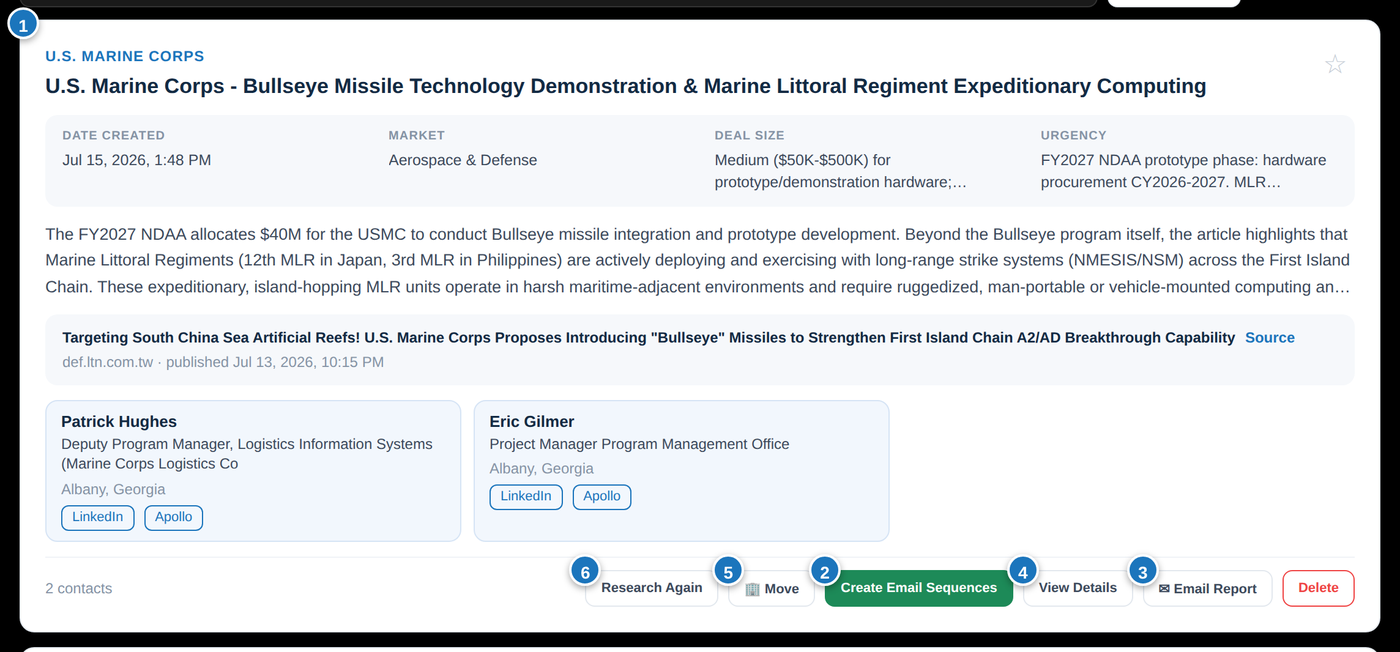
- 1The target card — the company logo, company name, opportunity title, key facts (market, deal size, urgency), the opportunity summary, the source article, and prospect cards with LinkedIn and Apollo profile links.
- 2Launch sequences — builds outreach email sequences in Apollo from this target (see Email Sequences below). Amber = no sequences exist yet; green View sequences (N) = they exist — clicking green opens them in Apollo, and Recreate sequences sits beside it. The tile says who created them and when.
- 3🔗 Copy Link — every detail view (targets, accounts, competitors, PPPs, and news articles) has a Copy Link button. It copies a shareable URL that opens straight to that record. Paste it into an email or chat; anyone with a SalesIQ sign-in who clicks it lands right on that record (they sign in first if needed). Rose's emails also hyperlink each listed target's name to its detail view.
- 4✉ Email Report — Rose emails you the branded report for this target as two attachments: the Word document and a PDF (the Word file to edit or paste from, the PDF to read on a phone and forward as-is) (arrives in your inbox in a minute or two). Every ✉ button first shows a send dialog with a Rep-safe version checkbox: tick it to get a partner edition with internal Daisy information removed — no Salesforce history or metrics, no records of our communications with the customer, no deal financials — safe to forward to manufacturers' reps while keeping all the targeting intel, prospects and public data. The file is marked "_Partner" so the two versions never get mixed up.
- 5View Details — the full brief in a popup: entry path, certifications, competitive notes, next steps, and the email-sequence history. Below that, every prospect in one table — tier, name & title, email/phone, the Sequence column saying which drafted email that person enrolls into, and why to reach out — then the email sequence drafts as drop-downs, each opening to its subject, body, Copy / ✉ Open in Email buttons and a Sending to list of exactly the prospects it goes to. Accounts, PPPs and research reports show prospects and drafts the same way, so they read the same wherever you meet them. It stays a table on a phone — the columns that won't fit give way, not the format: the sequence chip moves under the name and "why reach out" drops to its own line under each person, so you can still run your eye down the list and compare. Every prospect carries a tier: a bright chip where the research ranked them deliberately, a dimmer one where it's read from their job title (hover to see which).
- 6🏢 Add Account — file this target under a company profile (targets usually file themselves automatically — see Accounts below). 🧩 Add PPP works the same way for program profiles. Both open the same picker: click the record you want — nothing to type — with a search box once the list runs long, a count on each row of how many targets are already filed there, and the one this target sits on now marked Current. The PPP picker also carries a ✕ Detach row that un-files the target. You can create a new account from the account picker; PPPs are created by an admin on the PPPs tab, so the PPP picker lists the ones that exist.
- 7Add Prospects (formerly Research More) — digs deeper on the source article: finds and ADDS more relevant prospects (existing ones are never removed), refreshes the brief with any new information, keeps your existing email drafts as-is and writes drafts only for the newly added prospects. Keeps the account link and owner. If the target is Incomplete (a thin research-report/PPP target missing its detail sections), Add Prospects completes those details first — filling the product fit, entry path, deal size, next steps and competitive read — then finds prospects and drafts on the richer information.
- 8🔬 Research Report — found a target worth a real deep dive? This runs it through the full research engine (the same one behind 🔬 My Research and emailing Rose): a complete prospecting report on the company/program from every angle — divisions, value chain, buyer groups, federal footprint — lands on your My Research tab and in your inbox in ~10–20 minutes. Any NEW related pursuits it finds become targets grouped in one deck with this target (the original is never duplicated), and related Account/PPP profiles update with what it learns.
👤 Prospects — every person, one row each (admin only)
The people behind the pipeline, in one sortable table. Where the Targets tab asks "what are we chasing?", this asks "who do I call?"
Prospects are discovered and stored per target, so the same buyer at a big account is stored once per pursuit — one Lockheed procurement lead sits on sixteen targets. This tab is person-first: those copies are folded into a single row that lists every target and programme that person belongs to, with the best contact details found across all of them (an email revealed on one target shows on the row even if another target's copy was blank).
Columns: name and location · title (and their employer when it differs from the account) · account · tier · the contact note explaining why they were chosen · email (with verification status) · phone · LinkedIn and Apollo profile links · industry · every target they're on · every PPP those targets belong to · whether they've been loaded into an Apollo sequence (with a link to it) · the date they were sequenced · the date they entered SalesIQ.
Sorting and filtering: click any column heading to sort by it (click again to reverse). Filter by account, PPP, industry group, tier, target owner, and whether they're in a sequence; tick has email, has phone or has LinkedIn to narrow to the people you can actually reach. The search box covers names, titles, emails, companies, contact notes and target titles at once. The status line always tells you how many of the filtered rows have an email and how many are already sequenced.
Each row leads with the company logo, and clicking a prospect's name — here, on a target's contact cards, or in search results — opens their detail popup: full contact details, the "why chosen" note, work history, every target and programme they belong to, and their sequence status, with links through to everything. Column widths are adjustable: drag the right edge of any column heading (your widths are remembered — the Products table works the same way), and the table scrolls sideways when it's wider than the screen.
⚡ Email Sequences (Apollo)
One click turns a target into Apollo email sequences — safely.

When you click Launch sequences, SalesIQ drafts a 3-email sequence per buyer group, tailored to the target, finds and verifies prospects in Apollo, and builds everything under your name: you become the sequence owner in Apollo and the emails send from your connected mailbox. Rose then emails you a confirmation with a direct link to each sequence.
Nothing ever sends automatically. Every sequence is created inactive — you review it in Apollo and flip it on yourself when you're happy. Every prospect is enriched (phone + verified email) as it's added, and three fields are written onto their Apollo contact record so the context travels with them: Contact Description (who they are and why they were picked), Target Notes (a short, skimmable briefing — the opportunity, what we'd supply, how we get in, who we're up against and the next steps, in plain text you can read with the phone in your hand) and Target URL (a link straight back to the full target in SalesIQ). This happens whether or not you tick "research additional prospects", at the same moment your Personalization voice is applied to the drafts.
📞 Include phone calls (optional). Tick Include phone calls in the create dialog to add 2 call steps to each sequence — one on the same day as the first email, one on the same day as the second. The calls land in your Apollo task queue (same rep who sends the emails), and each call task shows the prospect + target brief so you're ready to dial. Every prospect stays in the one sequence and gets the call steps — phone numbers come from each prospect's Apollo record (enrichment keeps them in sync), and prospects without one show as research-first call tasks. The first email carries your signature; the two follow-ups don't. Call tasks appear only after activation: Apollo generates the call task in the owner's queue when a prospect actually reaches the call step — the first one comes due the same day email 1 sends, right after it goes out. An inactive sequence never shows call tasks, and neither does a prospect added mid-sequence until they advance to that step.
🧪 Test Sequence (Admin tab). The Test Sequence card runs the exact same pipeline as the real Launch sequences button — contact verification & enrichment, drafting, signature policy, Apollo load with the async phone reveal, owner handoff, and the Contact Description / Target Notes fields — but against a committed [TEST] target whose contacts are the Daisy test team (you, Olena, Karyn), so nothing ever reaches a real prospect. Pick the owner (any teammate with an Apollo account — they become the sender and get the call tasks) and whether to include calls; the sequence lands in Apollo named [TEST] …, inactive. Because it's the real code path, if the test works, the real button works.
👥 Backfill Target Prospects (Admin tab). Finds and adds prospects to existing targets that are thin on prospects, without re-researching the whole target — it reuses each target's research and just runs Apollo prospect discovery, writing a short "why this prospect" on each. Set the minimum-prospects threshold and an optional create-date range (leave dates blank to sweep every target), then Find & Add Prospects. Scope with the date range to run in batches when there are thousands. Spends Apollo credits per target it touches.
🧩 Complete Incomplete Targets (Admin tab). Sweeps every Incomplete target (research-report/market-sweep targets whose detail sections are empty) and every target that is thin on prospects even if its detail sections are full, and completes them in bulk: a deep-analysis pass fills any missing sections (grounded in the source report so it stays factual), then it enriches prospects toward the 10-prospect goal, drafts persona-group emails, and weaves the details into the related Account/PPP. Set how many of the nine detail fields must be missing to qualify (default 5) and an optional limit, then Complete Incomplete Targets. It never overwrites a real value or a hand-tuned draft, saves progress as it goes (a failed run resumes), and spends Apollo + Claude credits per target. The same completion runs on a single target from the 🧩 Complete Research button in a target's detail view. Note: unlike Backfill Prospects (which skips a target it searched in the last 20h), this rescues deep-complete-but-contactless targets a plain backfill would keep skipping.
⚔ Refresh Incumbents & Competition (Admin tab). Rebuilds just the Incumbents & Competition section on Account and PPP profiles in bulk, under the evidence rule: a competitor or competitor product is named only when a reputable on-record source — a tracked competitor profile, a HigherGov award/subaward, or a dated news/social item — documents the connection. Speculative "likely/expected" incumbents are removed (a section can legitimately come back empty). Nothing else on the profile changes, hand-edited sections are never touched, and a re-dispatch resumes where it left off.
🔗 Backfill Associations (Admin tab). Re-runs the association pass over existing targets in a date range (blank = all): never-linked targets get their account, PPP matching uses similar-phrase logic (separator and acronym tolerant — a target can attach to multiple programs, with extra matches shown on each program's profile), target details weave into every associated profile, and tracked competitors named in the analysis get evidence entries. Every run ends with a propagation check in the log naming any target still associated with nothing. Deterministic and safe to re-run.
✍️ Personalization — make the emails sound like you
Your voice, applied automatically to every sequence you create. The tab appears when your sign-in is connected to an Apollo account.
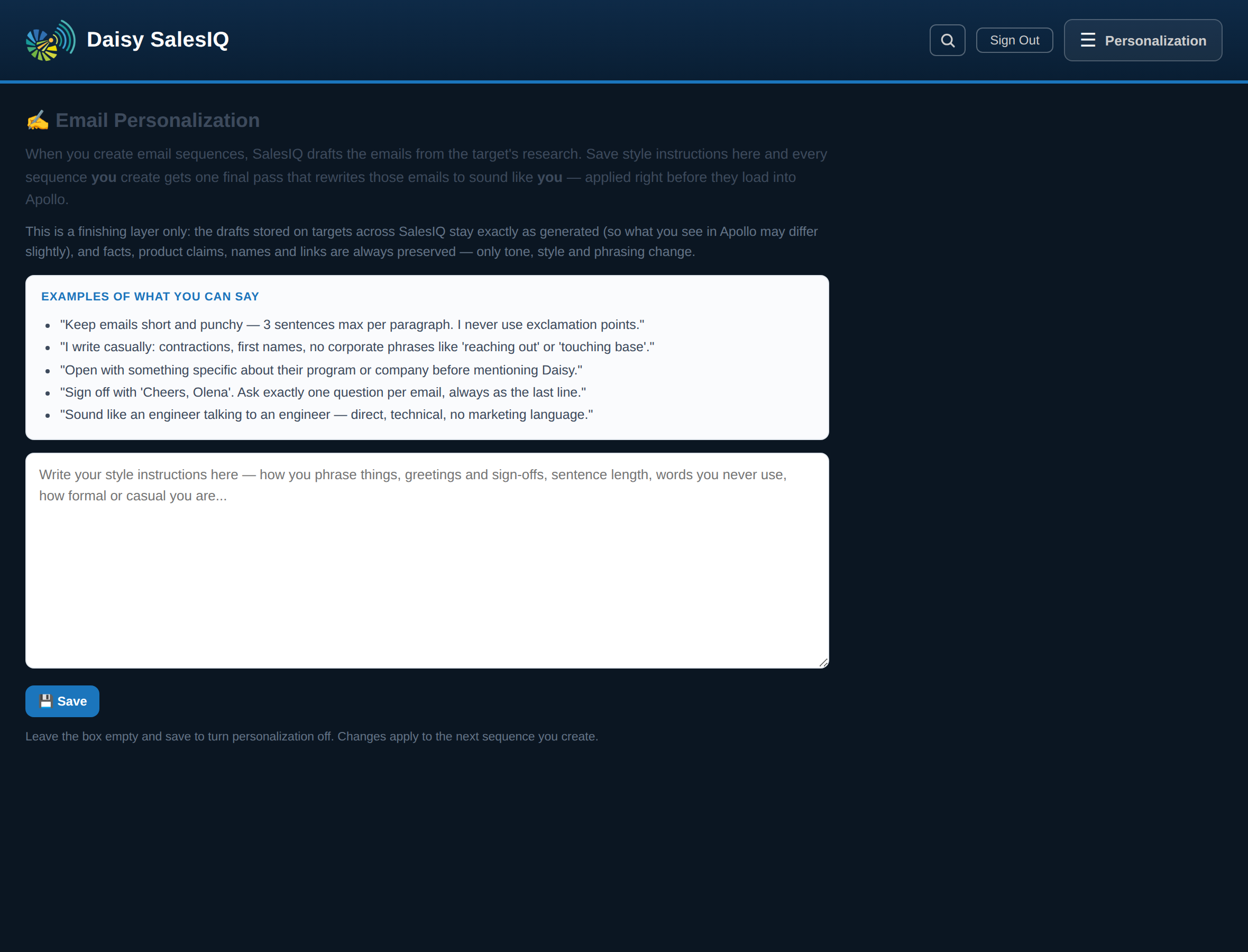
Write style instructions once — how you phrase things, your greetings and sign-offs, sentence length, words you never use — and hit Save. From then on, every sequence you create gets one final rewrite pass in your voice right before the emails load into Apollo.
- It's a finishing layer only: the drafts shown on targets in SalesIQ stay exactly as generated, so what's in Apollo may read slightly differently — that's by design.
- Facts never change: product claims, certifications, numbers, names, and links always survive; only tone, style and phrasing adjust. If anything looks off, the original draft is used instead.
- Each person's instructions are their own. Clear the box and save to turn it off.
🏢 Accounts
One living intelligence profile per company — the big picture behind every target.
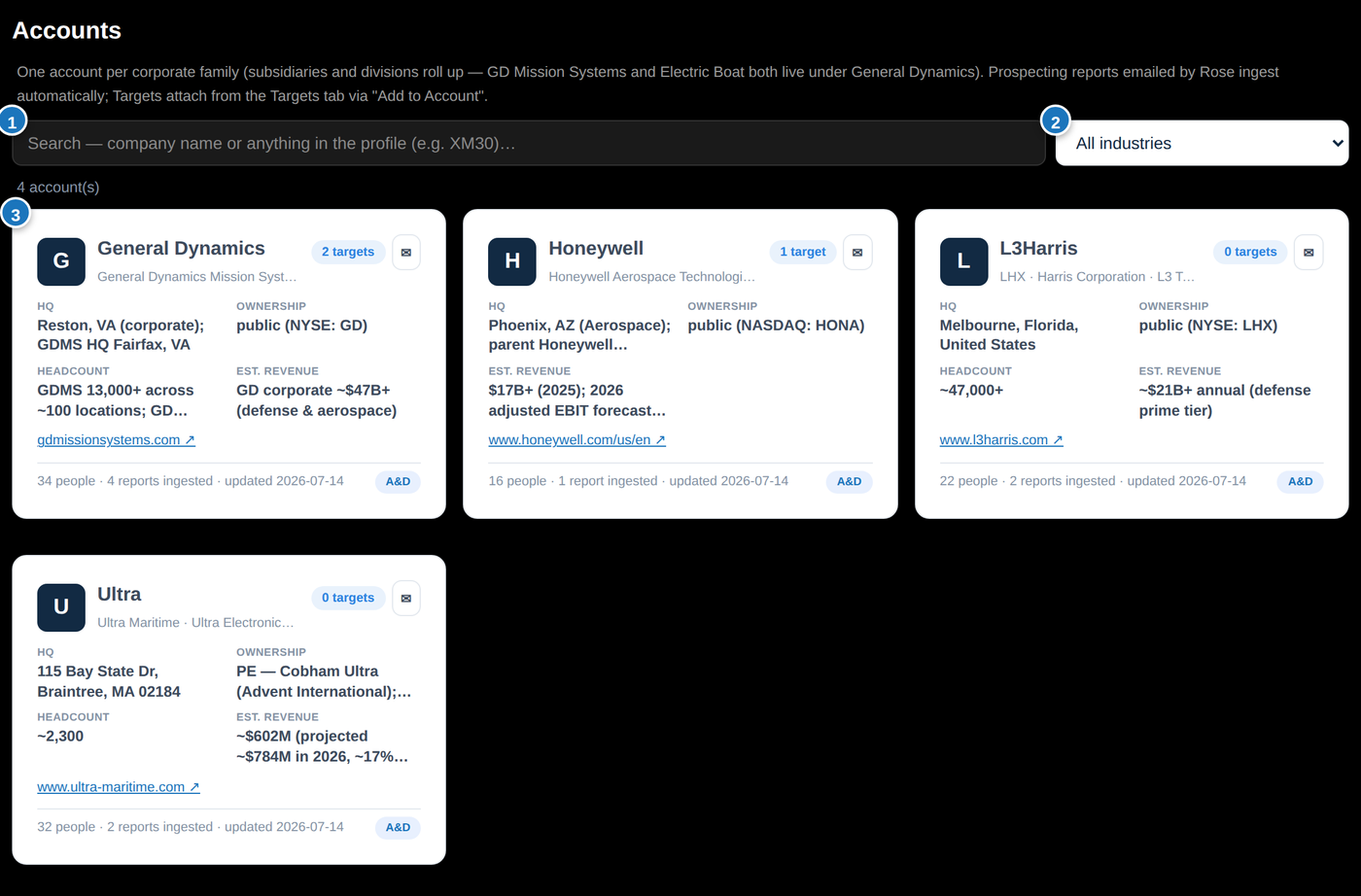
- 1Search looks inside everything — company names, programs, products, people. Type "XM30" and every account whose profile or targets mention it appears.
- 2Industry filter — Aerospace/Defense & Maritime, Food/Life Science & Industrial, Oil/Gas & Energy (the tag sits on each tile's corner).
- 3Account tiles — logo, a one-line description of what the company is, fast facts, and count chips hard against the right edge so they line up down the grid and you can find the work at a glance: N targets, in amber N uncontacted (emailable prospects, no Apollo sequence yet), and in grey N no contacts (no prospect on the target has an email address at all). The three add up to the target count, so whatever is left over really has been contacted — a target nobody can be reached at needs contact research (🧩 Complete Research), not a sequence, and it used to disappear from the arithmetic and read as though it had been contacted. Along the bottom, the totals rolled up from those targets — prospects, email drafts, comp (tracked competitors this profile names) and prod (their products the profile has tied to this company) — and when it was last updated. PPP and My Research tiles carry the same two chips and the same counts. Click to open the full profile. Filter the grid by industry, Salesforce strategy, region (US, North America, Central/South America, Europe, Middle East, Africa, Asia, Australia) or HQ country — both derived from each profile's HQ and locations, and a dual-HQ company (Houston + Dubai) shows up in both regions. The separate 🌍 activity-country filter answers a different question: not where the company sits but where its tagged targets and news say the opportunities are happening — pick Iraq and you get every account with tagged activity there, wherever it's headquartered.
- 4★ Strategic / Growth tag & filter — pulled live from Salesforce's Account Strategy field (never stored in the repo, needs your SF connection). A whole account family is Strategic if any of its Salesforce accounts is marked Strategic; everything else is Growth. The tag shows on every tile and profile, and the strategy dropdown filters the tab.
- 5+ Add Account (Admin tab) takes a name and an optional company website URL — the URL seeds the research build and helps it lock onto the right company, which matters most for firms with no HigherGov footprint. (The Add Competitor form has the same URL field.)
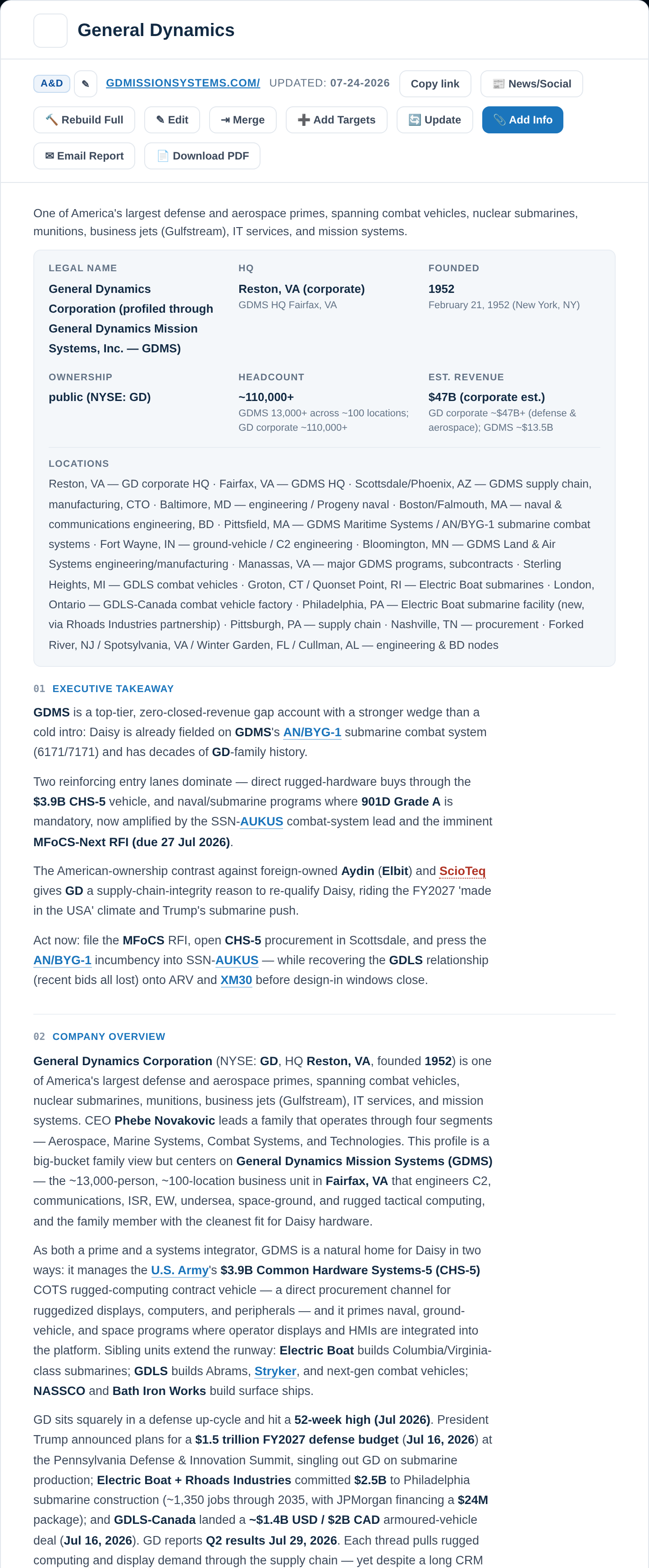
Open a profile and the company logo sits beside its name, with the actions on one row beneath: Copy link, 🔄 Update, ➕ Add Targets, 📎 Add Info, ✉ Email Report, 📄 Download PDF and the admin Rebuild Full / Edit / Merge. Then the one-line description, the fast-facts strip (legal name, HQ, founded, ownership, headcount, revenue, locations) and the numbered sections — the same numbering the emailed report and the PDF use, so "section 4" means the same thing in all three. Program, company and competitor names inside the prose are links to their own profiles.
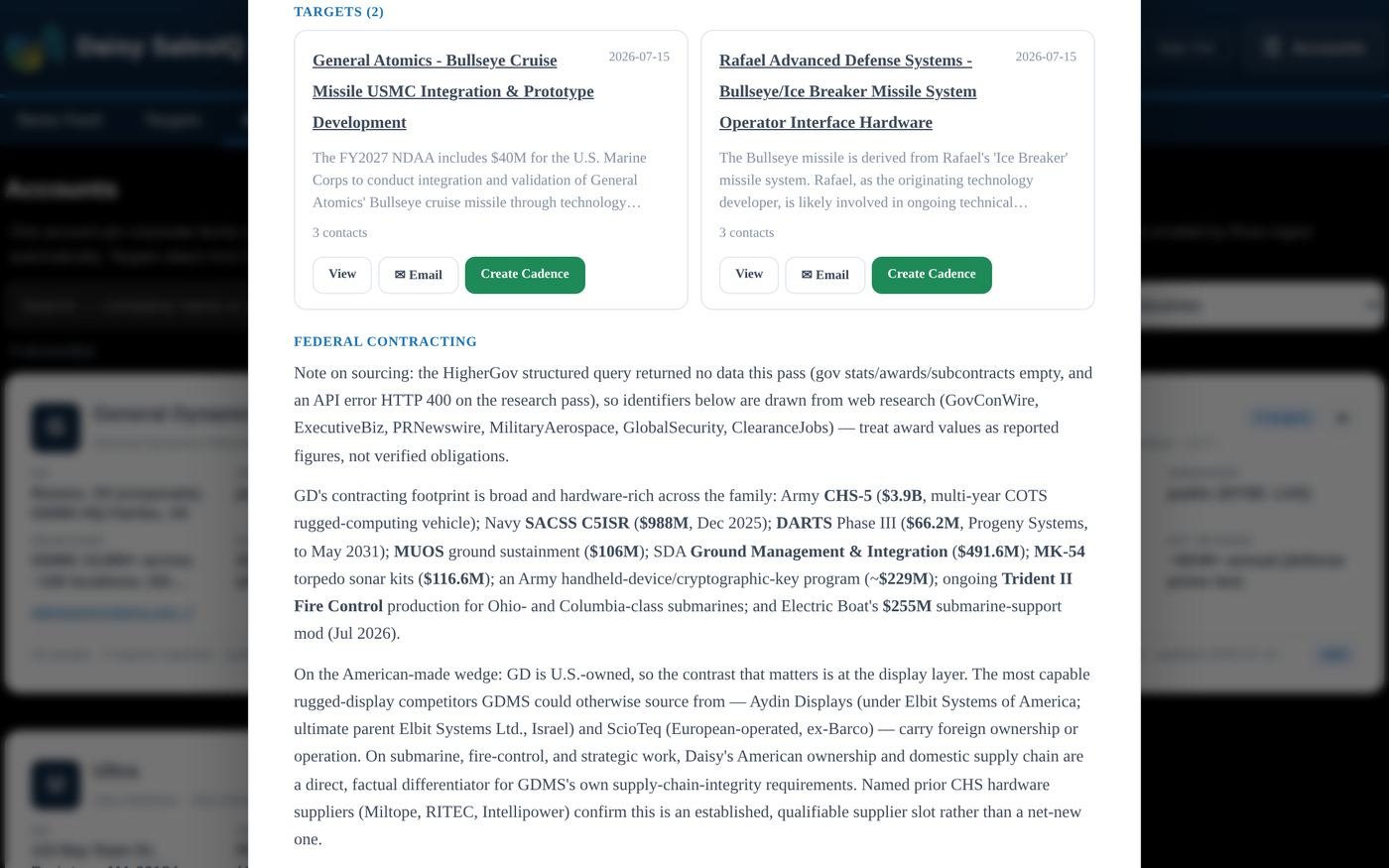
Inside a profile you'll find the company overview, business units, programs & projects, their products that need displays/PCs/keyboards, government contracting history, one Timeline of Key Events (news and dated events merged, newest first) with social signals beside it, key people — and the Targets section above: every active opportunity at that company as a tile, each with View / ✉ Email / Launch sequences buttons (same colour coding as the Targets tab). At the bottom of Business Units, Subsidiaries & Locations sits the 🌍 Activity Countries row — the deduped union of the country tags on every target and news story associated with this account (where the tagged work is happening, not where anyone is headquartered); click a flag chip to jump to the Targets tab filtered to that country. PPP profiles carry the same row at the bottom of 📍 Locations & Facilities, and competitor profiles under Core Customers & Markets.
Profiles build themselves. Whenever anyone researches a target, it automatically files into the right account — subsidiaries roll up to the parent (a GD Land Systems target lands under General Dynamics), the source article joins the account's news and timeline, and if the company has no profile yet, one is created and fully researched automatically. Rebuilding a profile never removes its targets — they actually feed the rebuild as evidence. Even a brand-new starter profile that hasn't had its full build yet won't be blank: its overview, relevance, entry path, competition and Daisy-plays sections are seeded from its target's own research, and every time a target's details are completed or refreshed, the new information flows into those account sections too (it never overwrites anything you or a full build wrote, and it never triggers a rebuild on its own — that stays your 🔄 Update / 🔨 Rebuild call).
⚡ History & Activity with Daisy — live Salesforce
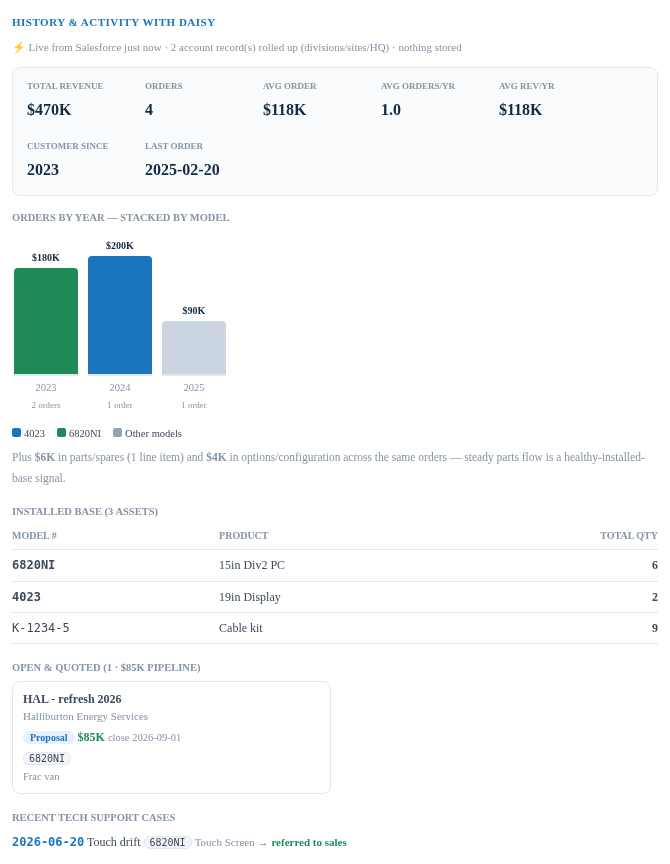
The bottom of every account profile is a live mini-dashboard from Salesforce, rolled up across ALL of the company's Salesforce accounts (divisions, sites, HQ records): lifetime totals and averages, orders by year stacked by model number, a parts/spares note, the installed base with quantities, everything currently open or quoted (with pipeline total), and recent tech support cases with their models. It loads fresh every time you open the profile — nothing is stored — and the same section appears in the ✉ account Word report, fetched live at generation time. If it shows "not connected", an admin sets it up under Admin → Salesforce Live Dashboards — and when saving, you can enter your SalesIQ password to sync the connection to your other devices (it's stored encrypted; signing in on any device restores it automatically).
🔄 Update vs 🔨 Rebuild — how profiles stay fresh
These rules are the same on Accounts, Competitors, and PPPs:
- 🔄 Update (on every profile — you can run this yourself) reruns all the research and folds what it finds into every section: news, social, HigherGov, deep web, leadership and contact search, and our CRM activity (Salesforce when connected). It is not a "what's new this week" pass. There is no cut-off date, so it can surface older material an earlier run missed — background, a contact, an opportunity nobody had found yet — which is the point: you are starting from everything the record already knows rather than from nothing. Blank sections are a to-do list: any standard section that is empty or just says something like "no information found" gets actively researched and written this run (and only stays empty if the evidence genuinely supports nothing). New targets get created when the research finds something worth pursuing; existing targets and attachments never disappear. On a competitor it does the full product picture too — website crawl, spec sheets and dimensional drawings, supplier NSNs across every CAGE code, and the where-used research that finds real applications of their products. That part is cheap to repeat: each stage records when it last completed and is skipped while still current, so pressing Update twice in an afternoon costs one quick check rather than a second crawl.
- Incumbents & Competition — every account (and PPP) profile now carries this section: which competitors supply the company's display/computing/keyboard content today, mapped to their specific products and the systems/programs they sit on, with evidence from our tracked competitor profiles, HigherGov incumbent data, and the collected news/web research. Tracked competitors show a clickable ⚔ preview tile straight to their profile. On existing profiles it starts empty — run 🔄 Update to populate it. New research reports include the same section automatically.
- 🔨 Rebuild Full (admin) is the heavyweight redo: every source, full crawl, and every section rewritten from scratch rather than woven into. It researches the same breadth as Update and forces every stage to re-run regardless of when it last did. It never deletes targets — existing ones are kept and re-attached to the rebuilt profile, and it looks for new ones too. On a competitor nothing in the product catalogue is ever removed: products, NSNs, documents, images and every where-used association you or the research have built up are permanent. A rebuild tries to improve the catalogue; it cannot shrink it.
- Creating a record researches it — adding an account, a competitor or a PPP starts the full research build straight away; you no longer get a bare tile and have to come back and press research. It runs on the configured model and asks nothing, and the first targets arrive with it. If the dispatch itself fails you are told, and the profile's 🔨 Rebuild Full picks it up.
- Choosing the model — clicking either button opens a short dialog with two dropdowns. The first is which model does the research analysis and the writing. It defaults to whatever the Admin 🧠 AI Models settings say at that moment, so pressing straight through behaves exactly as configured. The list offers only models that have proven they can do that kind of work. It changes that lane only — news and social curation, prospect tiering and image reading stay on their own settings, because putting an expensive model on those would multiply the cost of a click for no gain. Whichever model runs, the result follows the same template, structure and house format; only the information in it can differ.
- Web research — the second dropdown. Some models can search the live web while they answer, and picking one here adds a research pass before the writing starts: it goes looking for what is out there on this company, program or product line — who supplies what, which products sit on which platforms, what has just been awarded, and openings worth chasing — and hands the findings to the writing model with the address of the page behind every one of them. Anything it cannot point at a real page for is thrown away before you see it. Only models that genuinely search are listed; if the list is empty, none has been added yet (Admin → 🧠 AI Models → ➕ Add & test it). Leaving it alone uses whatever the Admin settings say for this lane; until somebody sets one there it means no web research, and the button behaves exactly as it always has. It adds a few minutes to the run. And it is never quietly swapped for a model that cannot search — if the research cannot run, the profile is simply built the way it always was, from the sources it has always used.
- 🔄 Update All (admin, on the Accounts / Competitors / PPPs tab headers) updates every profile in one background run — stalest first, progress posts as it goes, and if the run dies partway, dispatching it again picks up where it left off.
- 🧱 Build New (Accounts / PPPs headers) does a full research build for ONLY the newly-added, never-researched profiles — it does not touch or re-bill existing ones. Add a batch of stubs, click Build New once, and they populate over the next hour or two (one background run, committing as it goes).
- Adding & removing profiles happens on the Admin tab (Accounts / Competitors / PPPs cards — nowhere else). Deleting a profile never cascades: targets stay in the Targets tab, products stay in the catalog, documents stay in the repo.
🧭 PPPs — Programs, Products & Places
The top-level map. A PPP is one profile for a whole pursuit that spans many companies — a defense program (XM30), a product platform, or a specific plant/site — with every player, target, and Daisy's strategy in one place.
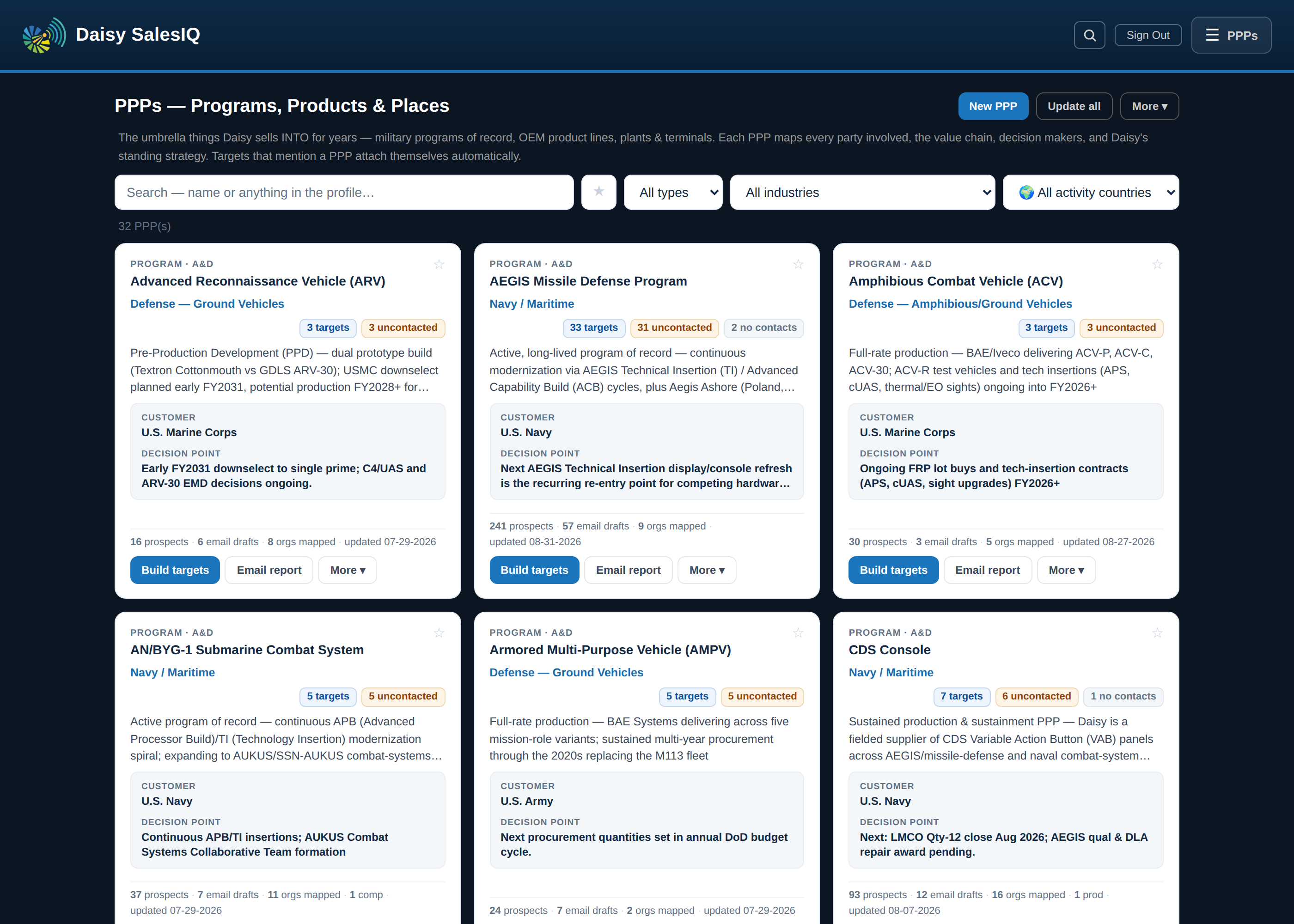
Filter by industry using Daisy's three groups — Aerospace, Defense and Maritime · Food, Life Science and Industrial · Oil, Gas and Energy — the same segmentation the customer and keyword lists use. Every PPP belongs to at least one, and a program that genuinely spans two (an LNG carrier's bridge is maritime and energy) shows up under both. The more specific label on the tile itself ("Navy / Maritime", "Defense — Ground Vehicles") is just a description; the filter always works off the three groups, with live counts, and a PPP that never stored a group is classified from its own text and its attached targets — so nothing sits outside all three. The tile eyebrow shows the group beside the type, and the PPP profile header shows the industry chips with the same ✎ editor accounts have: dimmed chips are derived, click ✎ to set the group(s) yourself (any acting user; never overwritten by rebuilds; the PPP's unstamped targets inherit it on the Targets tab). The 🌍 activity-country dropdown beside it narrows to PPPs whose tagged targets place work in one country — the same tags that show as flag chips on target tiles.
Click a tile to open the full profile. The headline sections:
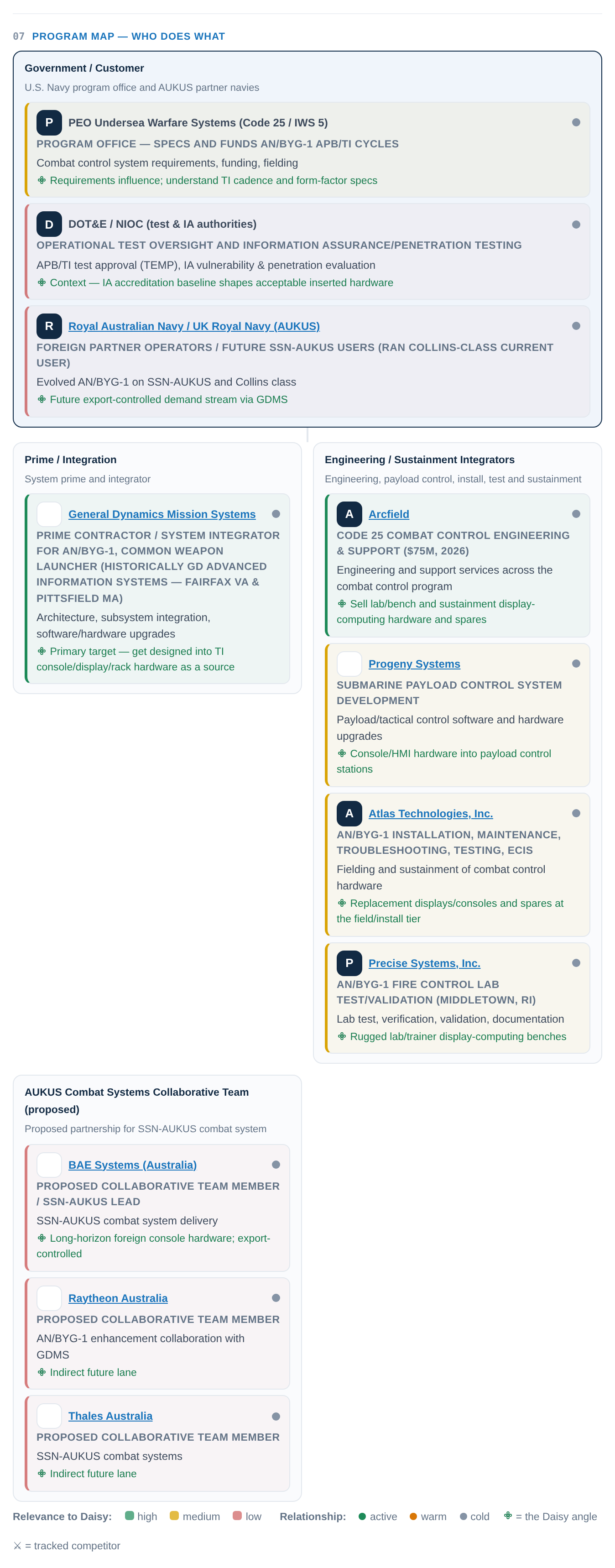
- 1Program Map — who does what. The org chart of the whole ecosystem: the government/customer band on top, then each team or prime with its subs and integrators. Every box shows the company's role, what they're responsible for, and the 🌼 Daisy angle — how we get in through them. Box colors are relevance to Daisy (green = go after, amber = watch, muted red = context only), and company names link straight to their Account or ⚔ Competitor profile.
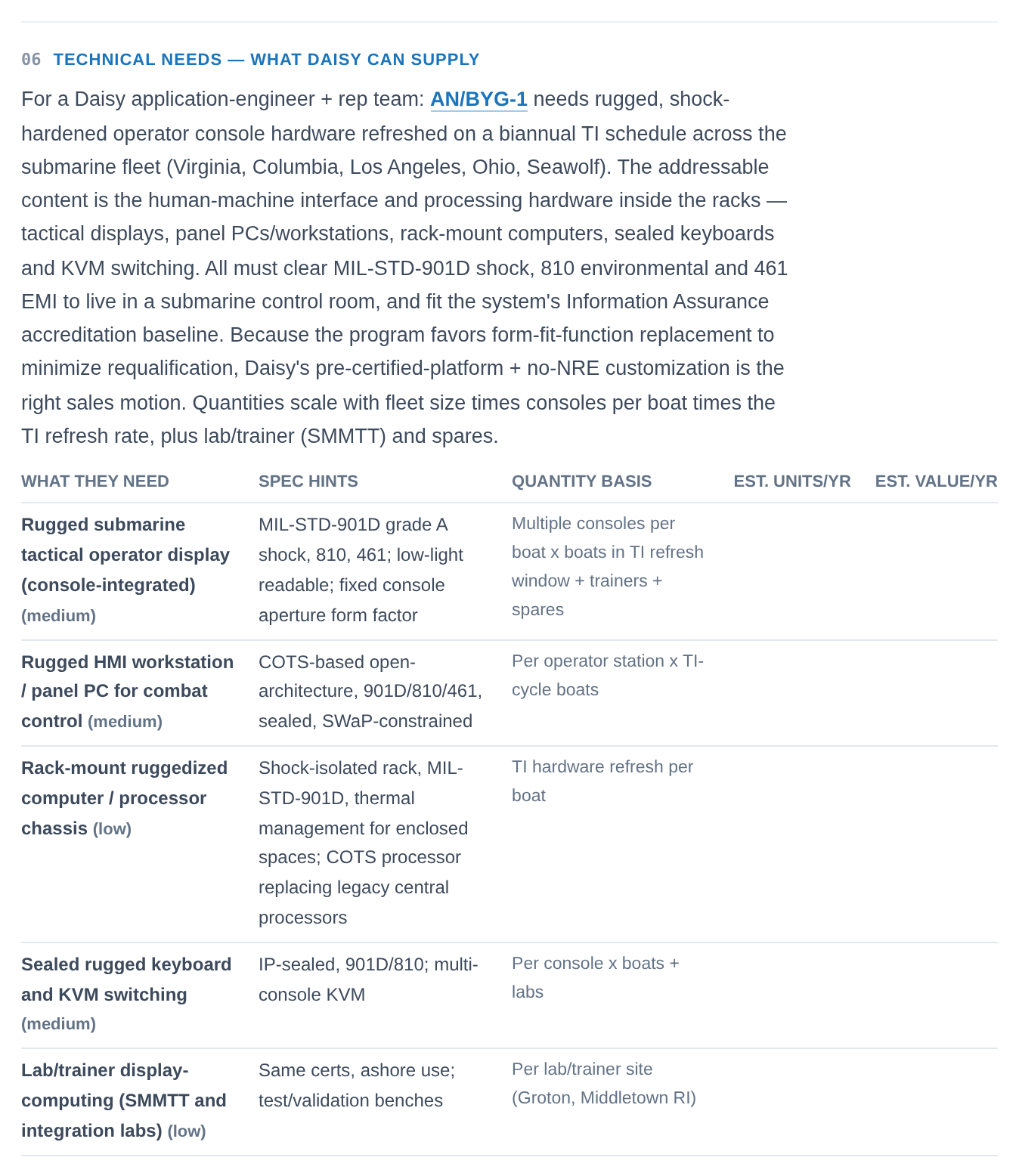
- 2Technical Needs — what Daisy can supply. Written for our app-engineer + rep teams: the specific displays/PCs/keyboards the PPP needs, spec hints, and estimated annual run rates — units and dollar potential per year.
- 3The rest of the map: Daisy's current involvement, technical details with photos, program funding & budget outlook (from congressional/DoD budget documents), award history, competitors in this program (their products + how to displace them), key products & NSNs, locations (which city/plant does what work), social signals, and one Timeline of Key Events — the news, the dated events and the projected milestones on a single newest-first list, so the same award is never read twice.
Targets live here too. Every build auto-generates distinct, pursuable targets from the ecosystem (including ones from Rose's prospecting reports), and any target you research that mentions the PPP attaches automatically — or use 🧩 Add PPP on the Targets tab. Target tiles carry the same View / ✉ Email / Launch sequences buttons as everywhere else.
⚔ Competitors
Intelligence profiles on the companies we compete against — who they are, what they sell, and exactly where their products sit inside government programs.
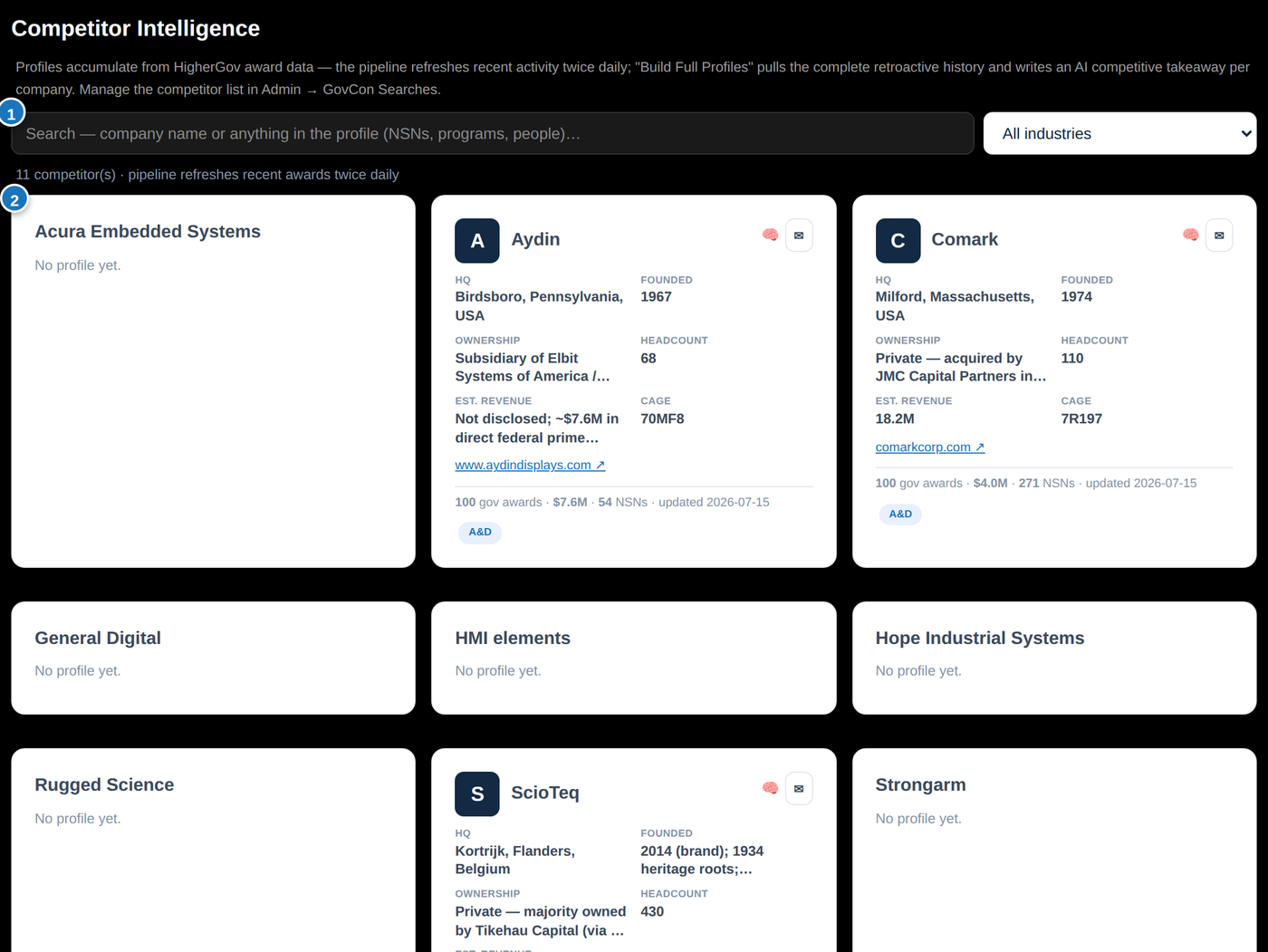
- 1Search works like Accounts — names, NSNs, programs, people, anything in the profiles. The 🌍 activity-country dropdown narrows to competitors named by tagged targets or news in one country — where you're actually running into them.
- 2Competitor tiles — the footer carries their product count (items in their curated catalogue, the same number as the All chip on their profile) alongside their federal award footprint. Click for the full profile: identity, ownership, leadership, recent news, social-media sales signals, AI competitive takeaways, and the two big sections below. ✉ Email Report works here too — the Word doc mirrors the whole profile, including the Product Catalog and the Government Intelligence sales questions.
🗂 Product Catalog
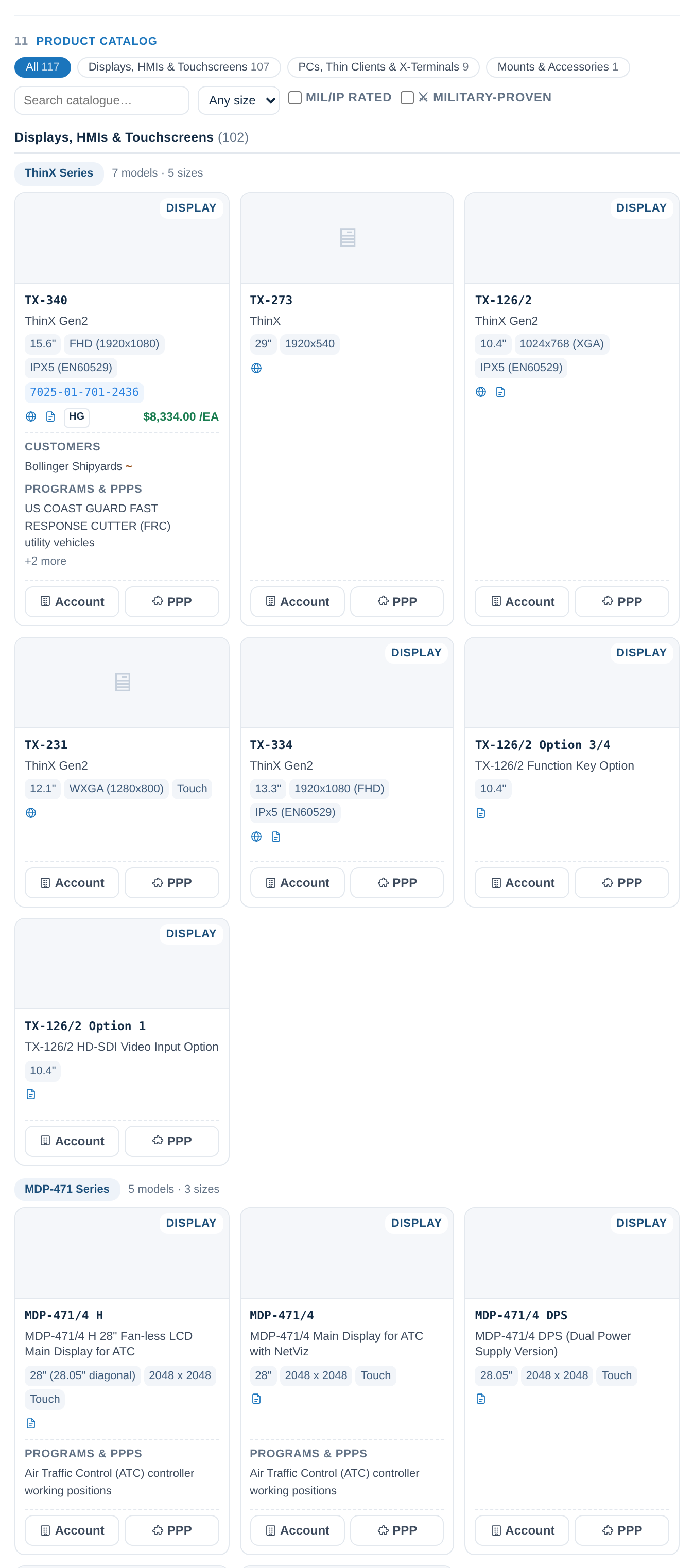
Their competing product line — only products from your tracked competitors, in Daisy's space — sorted into four standard sections: Displays, HMIs & Touchscreens · PCs, Thin Clients & X-Terminals · Keyboards, Pointing Devices & Peripherals · Mounts & Accessories (with series/family subgroups inside each). Every tile shows the thumbnail, model number, name, type, its NSN chips (a product can carry several — variants often get their own NSN), links to the product page, its spec sheet, its dimensional drawing and HigherGov, key specs, unit price, the awarded total under the price (every recorded government buy of that product, summed across all of its NSNs, with the year of the first known purchase and the year of the last — an 18-year span reads very differently from a single year), and the two Where Used columns side by side: Customers (linked to our Account profiles) and Programs & PPPs (specific programs, platforms, OEM products, plants — never vague "naval applications"). Inside every section and series the products a customer or programme is already known for come first, then the rest A–Z — a model you can open a conversation about outranks one you can only describe. Filter chips for section, screen size and MIL/IP rating; toggle ⚔ Military-proven for the government-footprint items only.
- 1➕ Where used — any user can add a Customer or Program association to a product (open the tile → the modal → ➕ Where used, then click which column it belongs in and type the name). Your entries carry a 👤 and are never overwritten; anything you ✕ remove stays removed — research won't re-add it. Distributors & Resellers (DLA) are listed separately below the two columns in the product detail — companies that bought the part through the government catalog and resell it, kept for the record but never mixed in with the integrators you would actually call. A ~ next to a company means likely prime — the industry's known prime for that program, inferred rather than found in a contract; everything without one traces to a DLA end item, a HigherGov award or a curated program org map (hover any entry to see its evidence).
- 2🔬 Research Product — open any product and this looks the item up everywhere at once: its DLA item record (the government's own nomenclature, every part number, the approved sources with their CAGE codes resolved to real companies, the source-approval codes that say whether a new supplier can qualify, unit and last price), its order history — who bought it and what they paid — the manufacturer's own product page and spec sheet for the specs, the datasheet and the photo, where it is used, and the tracked competitor's catalogue when the maker turns out to be one we follow. Whatever it can link, it files on the profiles themselves — the item appears under Competitor Products Used Here on every Account and PPP it is tied to (their Incumbents & Competition picture) and joins the competitor's own NSN list and catalogue. It is how you turn an NSN you spotted on a GovCon record into something a rep can use. Everything it finds is added — an existing value is never overwritten and nothing you typed is touched — and each part that could not be reached says so on the record instead of guessing. Once it has run the button reads Re-research; press it again after a new award or a new spec sheet.
- 3✎ Edit & ⇥ Merge — every field on a product record is editable, and ⇥ Merge combines two records when the crawler made duplicates (or two variants are really one product): NSNs, specs, documents, history and where-used all roll onto the kept record.
- 4Link / Linked — in the Government Intelligence raw-data drawer, every DLA-approved NSN row (pulled across all the competitor's CAGE codes, including historical ones) carries a green Link button: connect it to the catalogue product it really is. Once connected the row stays in the table with a red Linked chip that opens the product. The picker lists every product in that competitor's catalogue with a search box — type a model number, a part number or an NSN — and products the part numbers say belong to the same family are pushed to the top and marked. A product can carry as many NSNs as it sells under: linking a second one adds it alongside the first, it never replaces it, and products that already have an NSN are offered for exactly that reason. Anything you link by hand survives every rebuild and refresh — a later crawl of their website resolves back onto the record you linked instead of recreating the one you merged away.
- 5Spec Sheets & Drawings — open any product and its documents are listed as a table you can scan: type (spec sheet, drawing, catalog, brochure, manual), file name, when it was added and whether it came from an upload or was found on the manufacturer's site, and a link to open or download it. The same table sits at the bottom of the competitor profile as the Document Library — every sheet found anywhere on their domain, including the ones that live in a files directory with no link pointing at them.
🏛 Government Intelligence
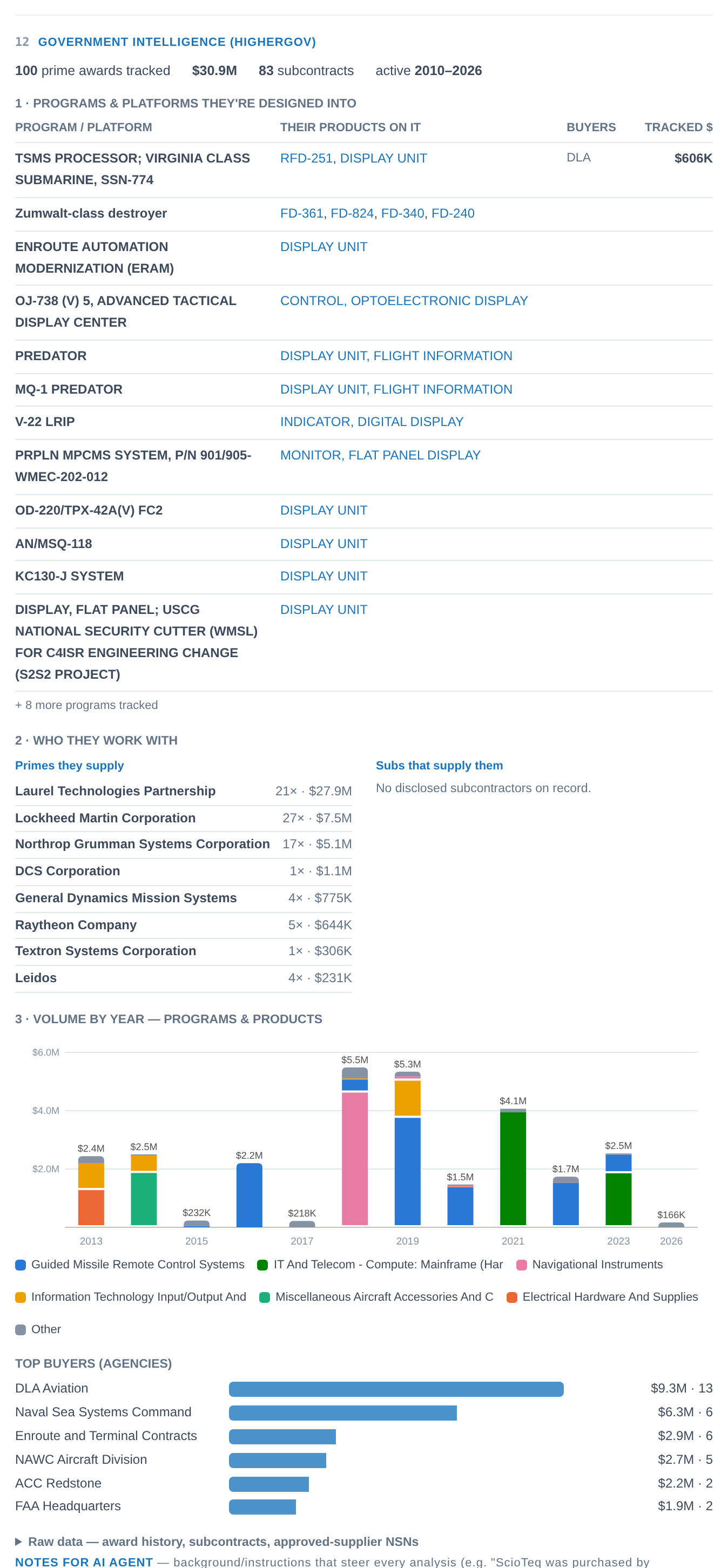
Their government business boiled down to the three questions a rep actually asks: (1) what programs, platforms and vehicles are they on — and which of their products ride on each, (2) which primes and subs do they work with, and (3) how much do they sell per year — a stacked yearly chart segmented by program. The raw award and contract tables are tucked into a "Raw data" drawer if you ever need the receipts.
🏛 GovCon (admin)
Government contract records from HigherGov — sources sought, RFIs, presolicitations, industry days, RFQs (SAM and DLA DIBBS), RFPs, J&As and award notices — fetched twice daily and scored for Daisy. HigherGov returns hundreds of records a day; the tab's job is to find the signal, then take you as deep as you want to go on the ones that matter.
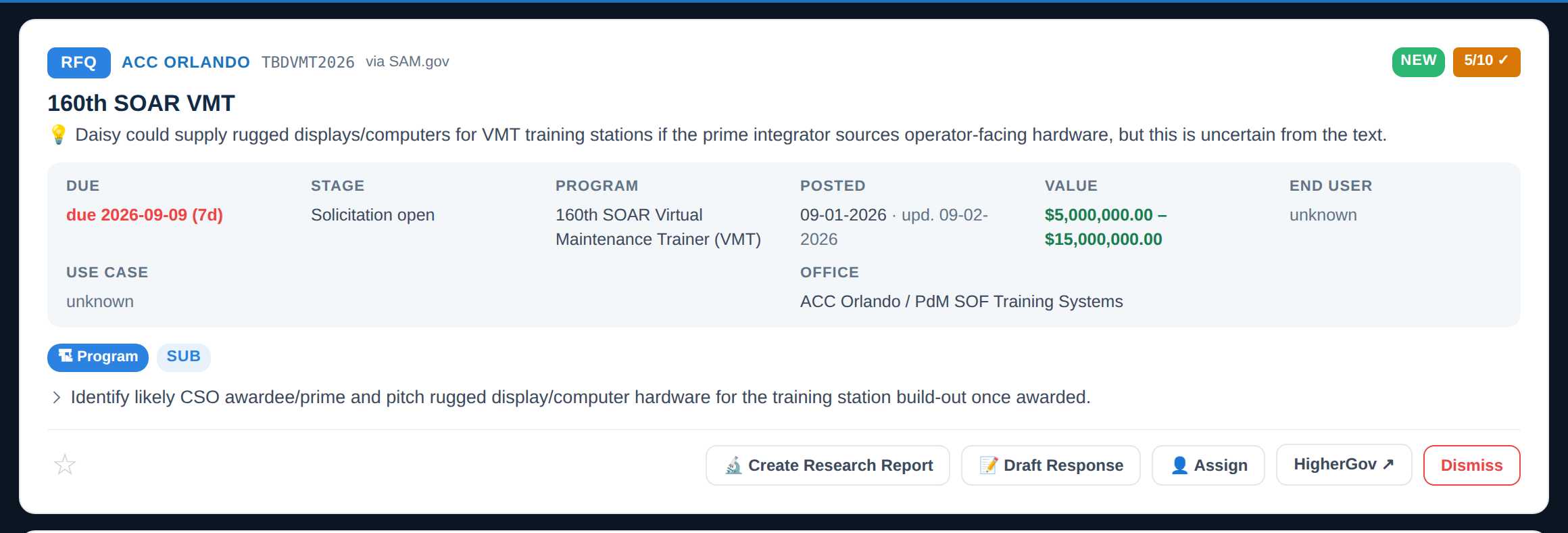
- 1The record card. The record type comes first — a big coloured chip (SOURCES SOUGHT, RFI, PRESOLICITATION, INDUSTRY DAY, RFQ · DIBBS, RFP, COMBINED SYNOPSIS, J&A, AWARD) taken from HigherGov's own type field, with the plain-language meaning on hover — then the buyer and solicitation number, the title, and a one-line fit: what Daisy could supply here. The facts strip shows due date (red when close), lifecycle stage (market research → pre-solicitation → solicitation open → awarded), the program or end item, value, quantity and set-aside. Chips carry the opportunity tier (Direct / Shape / Program / Industry Day), bid path (DIRECT vs SUB), a ⚔ competitor match, the record's state (🔎 fit verdict, 🔬 Reported, 📝 Drafted), and 🔗 named identifiers — the CAGE codes, part numbers, contract numbers and makers the notice text itself names, which HigherGov files nowhere in its structured fields. NSN items show as product subtiles with price history; past winners are named below. A ⚔ match fires on a named CAGE too: a notice whose "approved sources" line carries a tracked competitor's CAGE is a competitor item even before its NSN is on file.
- 2Scoring reads the description, not the title. HigherGov's own type sets the record type; obviously irrelevant categories (construction, services, food, parts) are filtered without a model call; Haiku reads every other record against a fit test — what is actually being bought, does it contain operator-facing hardware, what environment, what stage, which path — and Sonnet re-reads the full description of anything scoring 5+ (a ✓ after the score). Hover the score for the reason. Component/part buys are capped at 3 and hidden unless you pick "Everything". ★ and Dismiss still train it.
- 3🔎 Deep Research — runs automatically for records scoring 7+, and on demand from the buttons inside any open record (the card itself leads with Create Research Report, which deep-dives first anyway). It walks HigherGov's layers behind the row: the solicitation documents; each NSN's item record (manufacturer, part numbers, approved sources, source-approval codes, unit price, DIBBS award history, end item); awards at this buyer; the incumbents and who they sub to; competitor overlap; the government contacts; unrevealed prospects at the primes. Then it writes the insight in plain language — what is being bought, where it sits in the program's life, the buying command, Daisy's fit with specific models, incumbents (evidence-gated), risks, next steps — and links the matching PPP, Account, competitor and product tiles. Everything it learns also lands on those records.
- 4🔬 Create Research Report — the card's lead action. Hands the record and its deep research to the research engine: a full My Research report on the opportunity (program and lifecycle, buying command and contacts, value chain and ecosystem map, incumbents and their part numbers, Daisy fit and the response strategy) with targets for the government office, the primes and the subs — prospects and drafted outreach attached, related account/PPP/competitor profiles updated. The popup offers to also draft a response; if you tick it, the draft becomes the report's last section (web, PDF and Word) with its own standalone Word/PDF links. Once the report exists the button turns green: View Research Report.
- 5📝 Draft Response — a submission-shaped DRAFT on Daisy letterhead whose format follows the record type: a capability statement for a Sources Sought, question-by-question answers for an RFI, a quotation package for an RFQ, a proposal outline for an RFP, registration + brief for an industry day, a capability-challenge letter for a J&A, an approach letter for an award, a teaming letter, or the internal bid/no-bid sheet. It answers the actual solicitation documents and the deep research, grounded in Daisy's fact sheet (registrations, MIL-STDs, models), and recommends specific models with options. The popup takes instructions (which model, pricing, lead time, what to stress) and attachments in any format (spec sheets, drawings, certificates, tables, photos — images are embedded as figures). Word + PDF land on the record and render in the detail view, and Rose emails both files to you automatically as soon as the draft is written — no button to press. Afterwards the card's button becomes 📤 Email / Download Response: one popup where you tick download, email it to me, or both, and Word, PDF, or both — so you can pull the Word file down to edit and mail yourself the PDF to read on a phone, in one go. ✎ Redraft Response lives inside the record only: a redraft is a fresh model run that supersedes the draft you are looking at, which is a decision to make with the record open rather than in passing from a list. Nothing is ever submitted.
- 6🧩 Create PPP (inside the record) — a notice is a purchase event; a PPP is the enduring Program, Product or Place it buys for. This builds that program's full profile on the PPPs tab — organizations and program map, schedule and projections, award history, competitors in the program and their products, what Daisy can supply — with the record and its deep research as the starting evidence, then research well past them. It checks first. If a PPP already looks like the same program it says which one and why (the deep research resolved it, the name matches, or one of its aliases appears in the notice) and asks whether to update that record with what this notice knows or create a new one — because two records for one program is expensive to undo. ~8-15 minutes; afterwards the button turns green and opens the profile.
- 7👤 Owner. Any acting user can assign a record to a sales user or admin (or clear it); Rose emails the new owner a summary with a link that opens the record. The Owner filter narrows to yours or to unassigned records; 🔎 Researched narrows to records with deep research.
📄 Submissions (admin)
Every draft response we have written, in one sortable list.
- 1Grouped by opportunity. Each government opportunity is a header row — its notice type, title (click to open the record), buyer and due date — with its responses listed beneath it. Every version is its own row: a redraft never replaces the row before it, because which version went out is the thing you need to be able to answer months later. Where an opportunity has more than one draft of the same type they carry v1 / v2 chips.
- 2The files, three ways. 👁 View reads the letterhead document in the app — the same rendering the record shows, so there is one version of the truth. ⬇ Word and ⬇ PDF download the stored files as they were written; nothing is re-rendered.
- 3📤 Send opens the same popup as the record card: tick download, email it to me, or both, and Word, PDF, or both.
- 4Sort and filter — newest, oldest, opportunity A–Z, response due soonest, response type, or who drafted it; filter by response type, notice type, person, buyer, how recently it was written, latest version only, and whether the response deadline is still ahead.
🔎 Keywords
What the news pipeline searches for — and how to add to it.
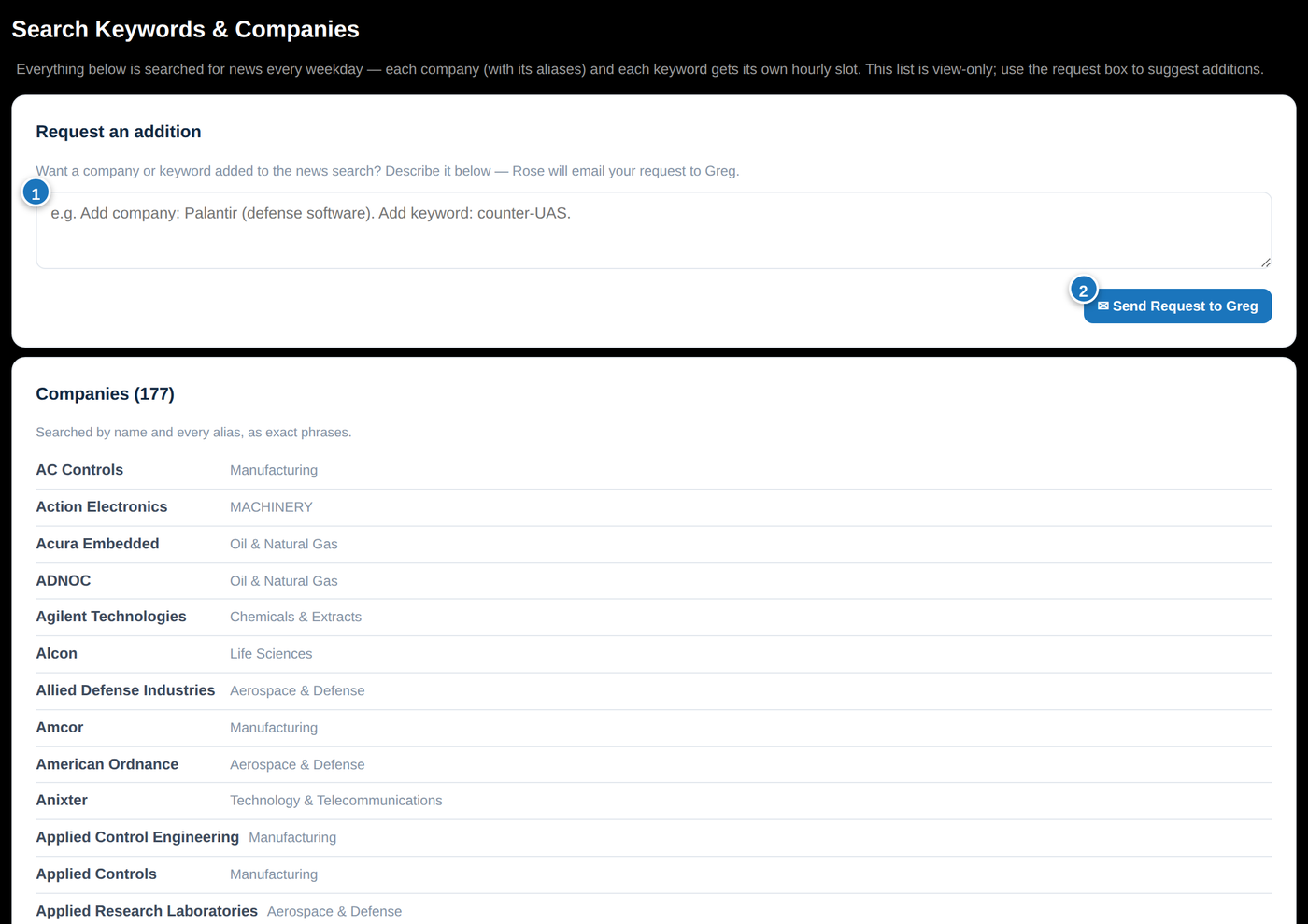
- 1The request box — describe a company or keyword you want tracked (view-only list below it shows everything currently searched).
- 2Send Request — Rose emails your request to Greg with your name on it. Once added, coverage starts the next weekday.
✉ Requesting a full sales report from Rose
For deep prospecting research on a company, program, or project — beyond a single news article.
Everything flows into SalesIQ automatically: every opportunity in the report appears as a Target in your Targets tab (with prospects and drafted cold emails), the account profile is created or updated with the report's intelligence, matching PPPs are expanded, and the report itself lands on your 🔬 My Research tab as a full record you can revisit, refine (📎 Add Info — more files or new guidance) and re-send.
⚙ Admin (admin)
Everything that configures SalesIQ, in five groups that follow the pipeline: what we search → what reaches the feed → the records it produces → who may see them → the maintenance sweeps. The Contents list at the top jumps to any group.
- 1What we search. Customers and Search Keywords are the terms the hourly news pipeline runs every weekday — a customer is searched with all of its aliases, a multi-word keyword matches as an exact phrase. 🔎 Search Coverage checks that every tracked competitor and every PPP is on those two lists and adds whatever is missing (ambiguous acronyms like TLS or SSC are judged by the AI so they cannot flood the feed; nothing is ever removed). 📡 Suggest a News Source asks World News API to start monitoring a publication it does not cover yet. GovCon Searches holds the saved HigherGov searches and DIBBS codes the twice-daily GovCon pipeline pulls from.
- 2What reaches the feed. The Relevance Threshold is a display bar, not a filter on what gets stored — every article is kept with its score and you can lower the bar at any time to see the rest. Excluded Terms force-score an article 1/10 and re-score matching articles already in the feed. Blacklisted Sources is where the ✘ you click on a source in the News or Search tabs ends up, and where you undo it. Clear News Feed is the one irreversible control on the page — cleared articles stay marked as already seen, so the pipeline will not fetch them again.
- 3Records & profiles. Accounts, Competitors and PPPs are the registries behind those three tabs, and the only place a profile is created or deleted. Deleting never cascades: the profile goes, its targets stay in the Targets tab and simply detach.
- 4Access & connected systems. Users is the sign-in whitelist and each person's view. Salesforce Live Dashboards connects the live “History & Activity with Daisy” section on account profiles — note those credentials are yours and this browser's, not an app-wide setting (Save can sync them to your other devices, encrypted with your SalesIQ password; GitHub only ever sees ciphertext). 🧠 AI Models sets which model runs each AI function — Claude, OpenAI, Google or Perplexity — and how hard it thinks; see below.
- 5Maintenance, backfills & tests is folded shut because you rarely need it. Inside are the retroactive sweeps, listed cheapest first: 🔗 Backfill Associations (free and safe to re-run) · 👥 Backfill Target Prospects · 🧩 Complete Incomplete Targets · ⚔ Refresh Incumbents · 🌍 Backfill Country Tags (a one-time pass) — plus 🧪 Test Sequence, which is not a sweep at all but a smoke test that creates a real, inactive Apollo sequence enrolling the fixed test prospects. Each sweep spends credits per record it touches and every one is resumable, so scope it with the limit or date range before you run it.
💡 Good to know
- Every ✉ Email Report goes to your sign-in email address. Tick Rep-safe version in the send dialog for a partner edition (internal Daisy info removed) you can forward to manufacturers' reps.
- You stay signed in on your device. Forgot your password? Ask Greg for a reset — Rose will email you fresh sign-in instructions.
- The Targets tab opens on your targets, but everyone can see the whole team's pipeline — switch the owner or creator filter to "All" or a teammate to browse theirs. Favorites and your default view are per-person.
- On a target, clicking a prospect's email address opens your mail app with their drafted email already written — addressed to them, with the greeting and any merge fields filled in for that person. The drafts are written one per persona group, so this is how everyone else in the group gets their own copy without you editing it by hand.
- Every card leads with one button — the action you most likely want — and keeps the rest under More ▾. Nothing was removed: adding prospects, a research report, the account and PPP links, assigning an owner, copying a link and deleting all live in that menu.
- ★ on any card saves it to your favourites, and the ★ button beside a tab's search box shows only those. It works the same on Targets, Accounts, PPPs, Competitors and My Research.
- Research takes 2–5 minutes — results appear automatically, no need to refresh.
- Email sequences never send anything until you activate them in Apollo.
- Have a writing style? Save it once in ✍️ Personalization — every sequence you create comes out in your voice.
- If a research run ever fails, the profile shows a "Last run failed" banner with the reason — no more silent spinners.
- View-only teammates: some sign-ins are browse-only — every tab, search, filter and favorite works, but research/update/sequence buttons don't appear. If you're missing a button you expect, that's probably your access level — ask Greg.
- Activity Log (admin): every run with who ran it, the tokens used and the estimated cost. Costs are estimates computed from Anthropic's published per-token rates, which SalesIQ re-checks every morning for each model it runs (Haiku 4.5, Sonnet 5, Opus 5); the line above the table says when the rates were last confirmed, and a rate change shows up in the log itself as a "Model pricing change" row. The Model column names the model each run actually used, which is how you confirm a change made in 🧠 AI Models took effect — and, sorted, how you see what a tier is costing you. Filter by user or action, click any column to sort, then Export CSV to download exactly what's on screen — filters and sort included — with the token counts split out (input, cache write, cache read, output) so you can total it however you like in a spreadsheet. The log starts 2026-07-24; earlier runs are kept in the repo's archive file rather than shown here. It lists deliberate actions only — bulk maintenance sweeps (Complete Targets in batch mode, Backfill Associations, Refresh Incumbents, NSN backfills, "all profiles" rebuilds, the scheduled news sweep) are left out so they don't bury the real rows or distort the costs. Their results still appear in the workflow logs, and single-record runs of the same buttons are logged normally.
Search Keywords & Companies
Everything below is searched for news every weekday — each company (with its aliases) and each keyword gets its own hourly slot. Tracked ⚔ competitors and every 🧩 PPP (name + aliases) are filed here automatically when they are created. This list is view-only; use the request box to suggest additions.
Request an addition
Want a company or keyword added to the news search? Describe it below — Rose will email your request to Greg.
Prospects
Manual News Search
Search the World News API with filters, or extract a single article from any URL. Results include full article text and are not saved to the pipeline.
OR between terms · -word excludes · 3–100 characters